Free piano ear training, on your own keyboard
The trainer plays a short melody on your digital piano. You play it back on the keys, and each note goes onto the staff as you find it.
100% free, no signup required.
What is piano ear training?
Piano ear training is practice at turning what you hear into notes on the keys. It builds relative pitch, the sense of how far one note is from the next, which lets you find a tune from any starting note. This trainer does melodic dictation on the keys. You hear a short melody, then play it back.
How it works
-
1
Listen
Press Start and a melody of three to six notes plays. With a MIDI piano connected, it plays on the piano itself. Replay it as often as you like.
-
2
Play it back
Play what you heard on your own keys. The trainer hears each key over MIDI as you press it.
-
3
See it written
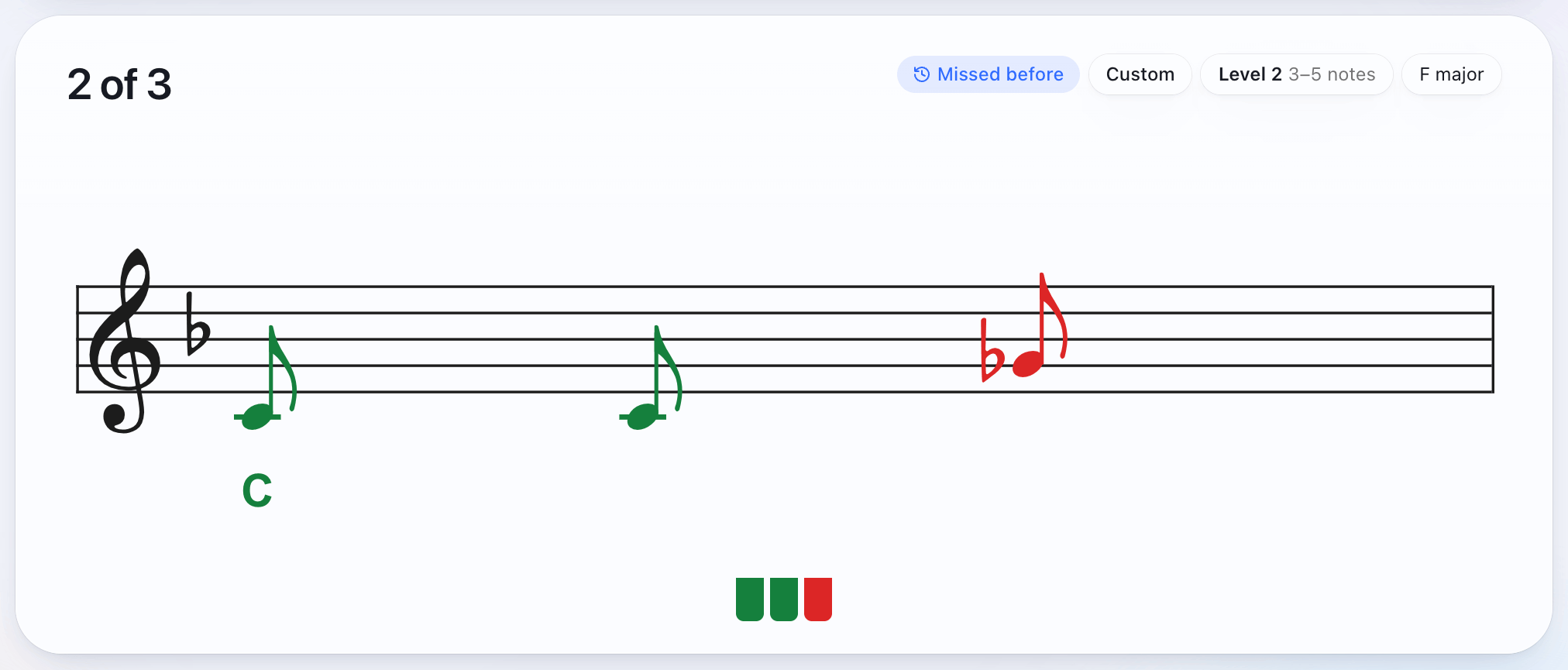
Each right note appears on the staff in green. A wrong one shows in red at the pitch you played, then fades, and you keep going.
How to practise
Turn on Key chord first in Settings (the Beginner and Easy difficulties have it on). The trainer plays the key’s chord before each melody, so you hear the home note.
Sing the melody back before you touch the keys.
Find the first note. If you need help, the First note or Named hint puts it on the staff.
Find the rest one note at a time. Does it go up or down, and by a step or a leap?
Stop at your daily goal. Short sessions most days tend to do more than a long one now and then.
There’s more on each step in the method for playing by ear.
What’s in the trainer
48 melodies from tunes you know, or endless random ones
The tunes are short phrases from 40 pieces that are out of copyright: Ode to Joy, Für Elise, Greensleeves, Scarborough Fair, Amazing Grace, The Entertainer and more. Most are in C, the rest in the key people usually hear them in. The songs page lists all 48.
Generated melodies are random and always in C. You choose the scale (major, major pentatonic, natural or harmonic minor), the range (a fifth, an octave or a tenth up from middle C) and the biggest jump between two notes. Or ask for a mix of both.
Hints, from reading every note to pure ear training
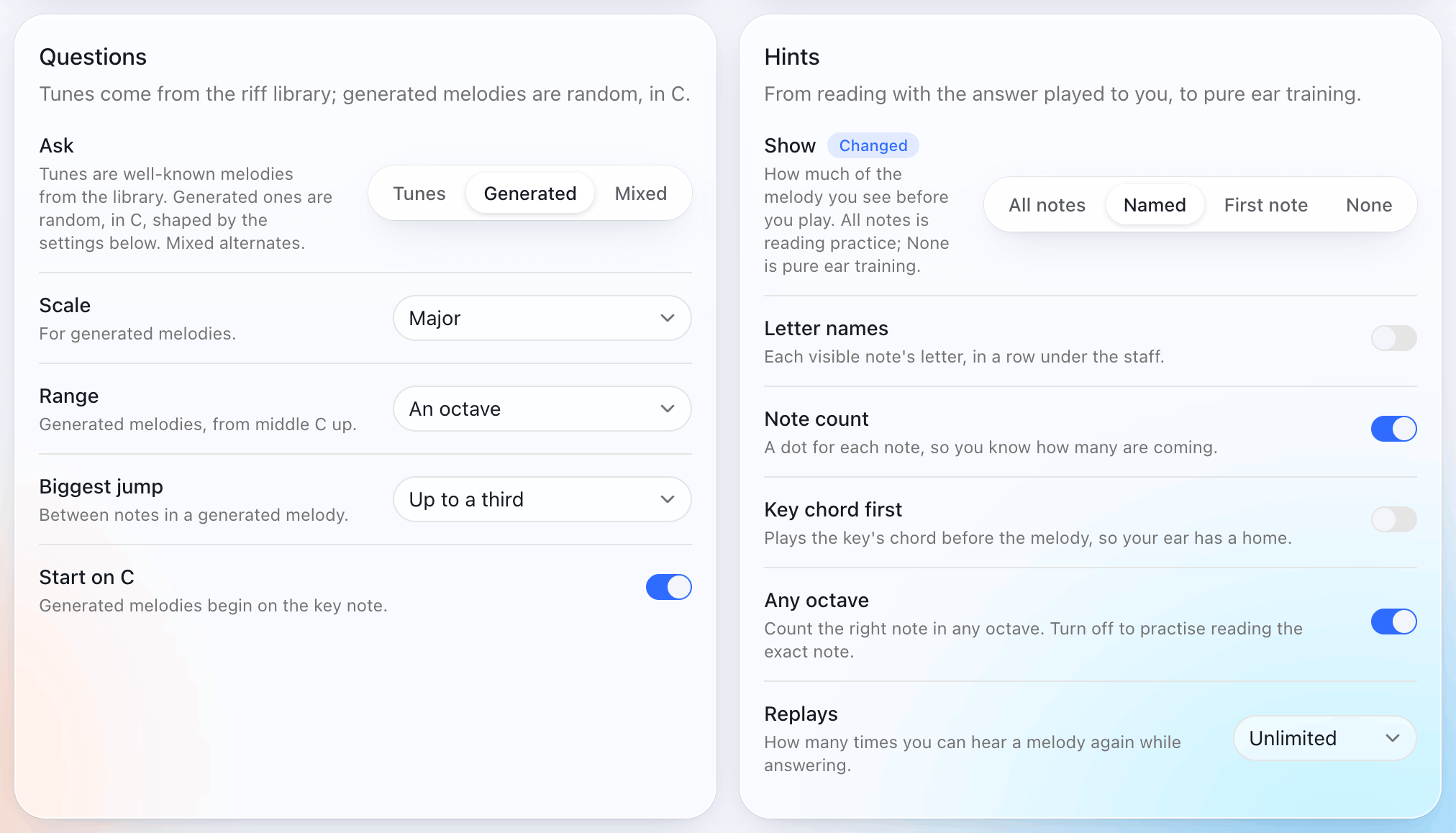
There are four levels of help. All notes puts every note of the melody on the staff before it plays, so you’re reading with the answer played to you. Named shows the first note with its letter under the staff. First note shows the first note alone. None leaves the staff empty until you play.
Letter names can go under every note you can see. You can also hear the key’s chord before each melody, limit the replays, and choose whether the right note counts in any octave.
Find it, or a clean run
In find it, a wrong note doesn’t lose your place. You keep looking until you hit the right key, at your own pace. Wrong keys while you look for the first note count as one mistake, however many you try. Clean run is stricter. A wrong note sends you back to the start of the melody. In both, a melody counts as first try only when you play it through with no wrong notes and without showing the answer.
Missed melodies come back
Get one wrong and it returns three questions later. Get it right first time and it comes back once more, six questions after that. Two first-time answers in a row clear it. A missed melody longer than today’s level comes back as its opening, at today’s length.
Five difficulties, eight levels
Beginner, Easy, Medium, Hard and Expert each set the hints, scoring, tempo, replays and random-melody options in one choice. Beginner is 3–4 notes with the first note shown and letter names on; Expert is 7–10 notes in the exact octave, nothing shown, and one replay. Change any setting by hand and the difficulty reads Custom.
The level sets the length, from 3–4 notes up to 8–12, and you start at level 3, with 3 to 6 notes. Get six of your last eight right first time and it moves up a level; miss four of your last six and it moves down. Set Moving up to Suggest and it offers the next level instead, or to Off and pick the level yourself. At the lower levels, long tunes are cut to their opening notes.
Mistakes by interval and scale degree
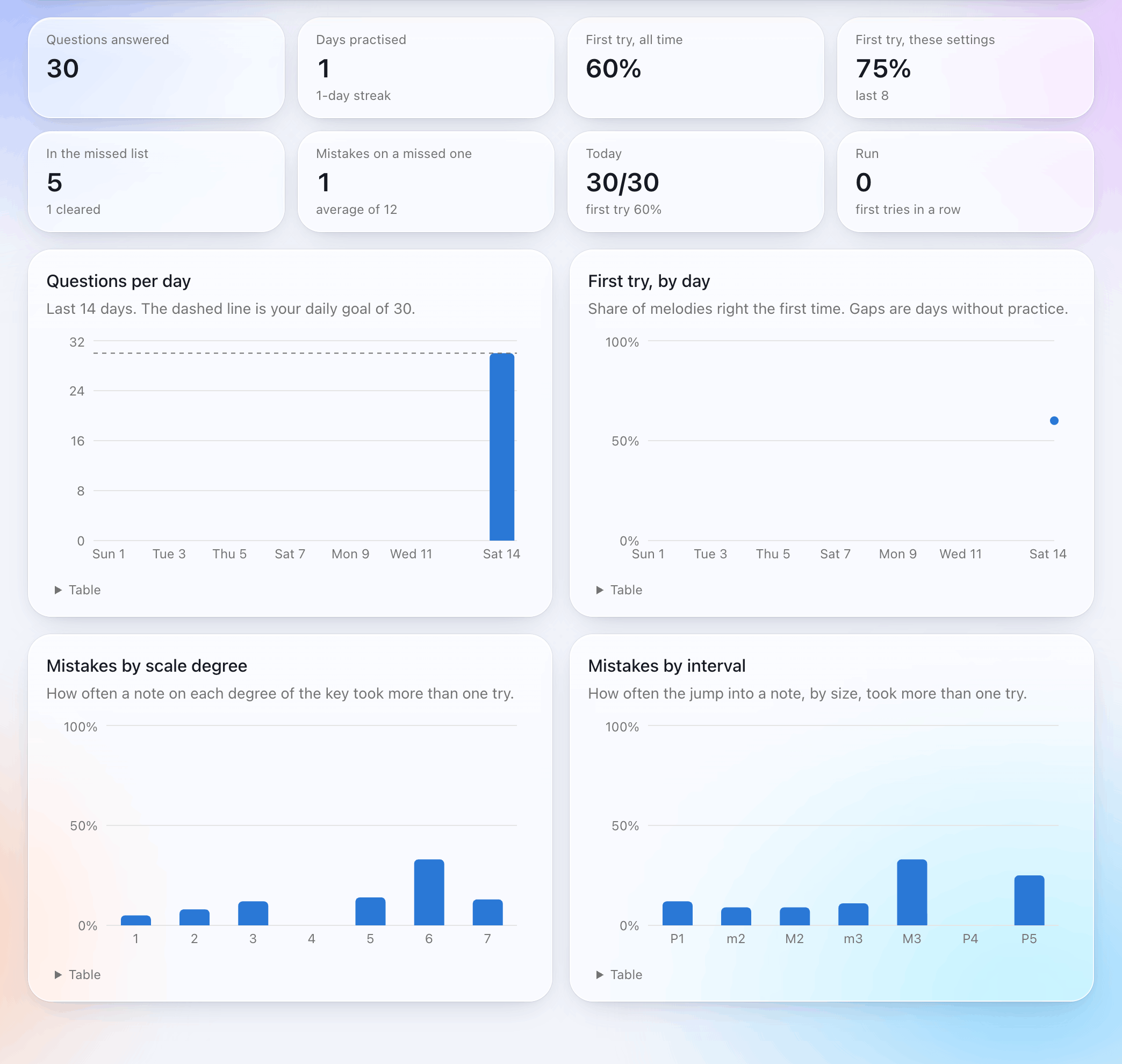
The Results tab charts your mistakes by interval and by scale degree, so you can see which jumps and which notes of the key you miss most. It also charts questions per day and first try by day, and keeps your first-try rate (today, all time and on your current settings), your daily goal (30 melodies to start, anywhere from 5 to 100), your run of first tries and your streak of days.
Your piano’s own sound
Over MIDI, the melodies play on your piano, through its own speakers. Without a MIDI connection to play on, a sampled grand piano plays in the browser instead.
Practise whenever you like
There’s no daily limit and no locked content. The daily goal is a target, and you can keep going past it. On a full 88-key piano, hold the lowest A to replay the melody and hold the top C to skip it, so your hands can stay on the keys. On a computer keyboard, Space replays and the right arrow skips. A short tour runs on your first visit, and Take the tour in the menu runs it again.
What you need
A computer with Chrome or Edge, and a digital piano or MIDI keyboard plugged in by USB. Connecting your keyboard takes a cable and one permission.
| Chrome or Edge on Windows, macOS, Linux or ChromeOS, with a USB MIDI keyboard or digital piano | Everything. Melodies play on the piano and you answer on its keys. |
|---|---|
| Chrome on an Android phone or tablet, with the keyboard on a USB-OTG adapter | Should work the same way, since Chrome on Android has Web MIDI. It hasn’t been tested on every device. |
| Safari on a Mac, and any browser on an iPhone or iPad | No Web MIDI, so the trainer can’t hear your piano. You get the on-screen keyboard and the browser’s piano sound. |
| Firefox | Firefox asks you to install a site-permission add-on before it shares MIDI devices. Chrome and Edge ask for a permission only. |
| No MIDI keyboard | The on-screen keyboard opens by itself when no MIDI keyboard is found, and melodies play in the browser. The staff, hints, scoring and stats all work the same. |
Questions
Is it free?
Yes, 100% free. There’s no account, no trial and no paid version. You open the page and practise.
Where is my practice history kept?
In your browser, on your own device. Progress and backups, in the trainer’s menu, downloads a backup file with your answers, settings and missed list, and restores it in this browser or another. Clearing this site’s data in your browser deletes your history, so download a backup first. The site counts visits with Google Analytics, and the trainer reports how it’s used, such as each melody’s result; the privacy policy lists every event.
Which keyboards work?
Any digital piano or MIDI keyboard that shows up on your computer as a USB MIDI device without a driver of its own (called class-compliant). Plug it in and the trainer picks it up. If you have more than one, choose in Settings, in the trainer’s menu. Connecting a digital piano has the details.
Does it work in Safari or on an iPhone?
Not with a piano. Safari has no Web MIDI on Mac, iPhone or iPad, and every browser on iPhone and iPad uses Safari’s engine. The trainer still opens there, with the on-screen keyboard and the browser’s piano sound.
Does it listen through the microphone?
No. It only hears notes sent over MIDI, so an acoustic piano won’t work. It never asks for the microphone.
How do I send feedback or ask for a feature?
Choose Send feedback in the trainer’s menu, or email hello@pianoeartraining.com. What’s planned is under coming soon.
Do I need to read music?
No. With hints set to None you only listen and play, and the staff fills in as you find each note. Turn on letter names to see what each note is called. There’s a short method for playing by ear if you’re starting out.
Coming soon
Planned for the trainer, in no particular order. None of these is in it yet.
| Intervals | Hear two notes and play the second, or play the note a given interval above one you’re shown. |
|---|---|
| Chords | Hear a chord and play it, or say whether it’s major or minor. |
| Scales | Play a named scale from memory, or hear one and name it. |
| Keys | Name the key of a melody you hear, or of a key signature. |
| Transposition | Play a melody back in a different key. |
| Songs in other keys | Once you’ve played a tune in its own key, it comes back later in another. |
| In time | A mode that checks the rhythm as well as the notes. |
| Rhythm in random melodies | Generated melodies with longer and shorter notes. |
| Bass clef and grand staff | Melodies written lower down, and on both staves. |
| More keys and scales | Generated melodies in keys other than C, and in more modes. |
| Sight-reading | Every note of the melody on the staff, with nothing played first. |
| Transcribe | Play freely and see every note written onto a scrolling staff. |
To ask for one of these, or for something else, email hello@pianoeartraining.com or choose Send feedback in the trainer’s menu.